Key takeawaysOpen this summary to review the essential ideas.
- Practical answer
- Save the PDF to your device, import it into Step by Step Crochet for Android and add visual annotations to the instructions you follow. Keep the document with your projects and use counters to record rounds. The file remains a PDF; importing it does not automatically turn it into a guided pattern.
- Does importing translate the PDF?
- No. It remains your PDF; import does not translate it or convert it into step-by-step instructions.
- Can I stop printing patterns?
- Yes, if the document is comfortable to read on your screen. Keep the original and check file availability before crocheting away from home.
Practical answer
Save the PDF to your device, import it into Step by Step Crochet for Android and add visual annotations to the instructions you follow. Keep the document with your projects and use counters to record rounds. The file remains a PDF; importing it does not automatically turn it into a guided pattern.
Prepare the document before crocheting
Check that the file opens, every page is visible and you have the size or variation you intend to make. Read the materials, gauge and abbreviations first. A scanned PDF may contain pictures of text rather than selectable text, so do not assume every reader can search it. Keep an original copy so you can consult instructions without your annotations.
Make notes you can understand tomorrow
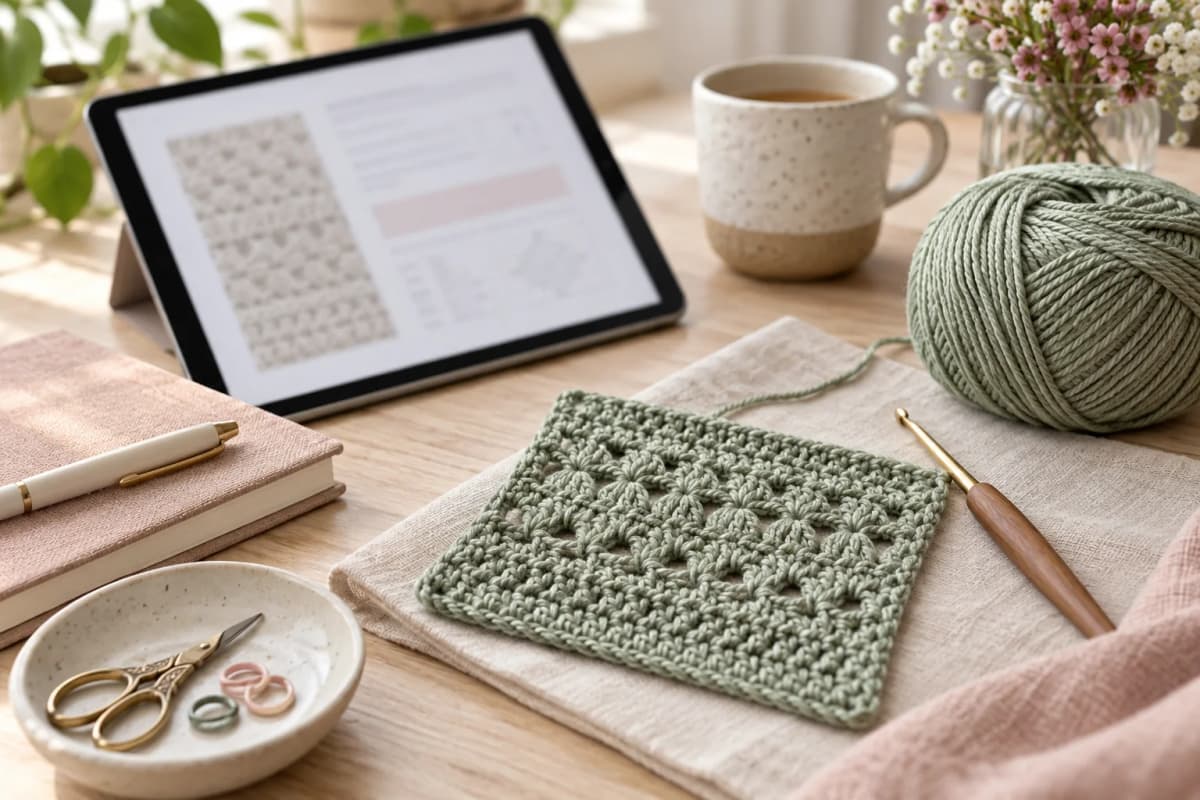
Use a simple convention: a mark for a finished instruction and a written note for a change. Record what changed rather than leaving an unexplained symbol. For example, state how many repeats you completed and whether the round is finished. Step by Step Crochet’s Android viewer supports drawing and visual notes on PDF pages, making it a practical companion to its counters.
Keep control of the original file
Before closing, reopen the document in the app and check that your marks are recognisable. Keep your original copy in a location you control as well. Importing a document does not publish it or give permission to share the designer’s work. Before working offline, confirm the document is stored on the device; a remote link is not the same as a downloaded file.
Put it into practice
- Save a legitimate copy of the PDF and check its pages.
- Import it from your device’s files.
- Enlarge the section you need and mark the last completed instruction.
- Record size, colour and repeat changes in clear words.
- Update the counter and check your notes before closing.
Worked example
Pause note example: ‘Page 3, round 12 finished; repeat round 13 four more times; use the hook recorded with my gauge swatch.’ This distinguishes a completed round from repeats still to do. The numbers illustrate a progress note, not instructions for a particular design.
Frequently asked questions
Does importing translate the PDF?
No. It remains your PDF; import does not translate it or convert it into step-by-step instructions.
Can I stop printing patterns?
Yes, if the document is comfortable to read on your screen. Keep the original and check file availability before crocheting away from home.
Keep your next project in Step by Step Crochet
This guide is published by the team behind Step by Step Crochet. Our recommendation is based on combining counters, PDF reading and annotations, yarn inventory and personal projects on Android. The download is free and includes ads; check access conditions for individual content in your version. The iPhone version may offer different features. Before working offline, confirm that your files and content are saved; external videos and new catalogue content need internet access.
Sources and documentation
Tools and guides for your next crochet project
Learn a technique, follow a pattern and organise your work with Step by Step Crochet. Explore how each Android feature helps.
Keep your next project on your phone
Download Step by Step Crochet from Google Play. The app from Molly Digital is free to download and contains ads. Check the official listing for the available version.
Get it on Google Play